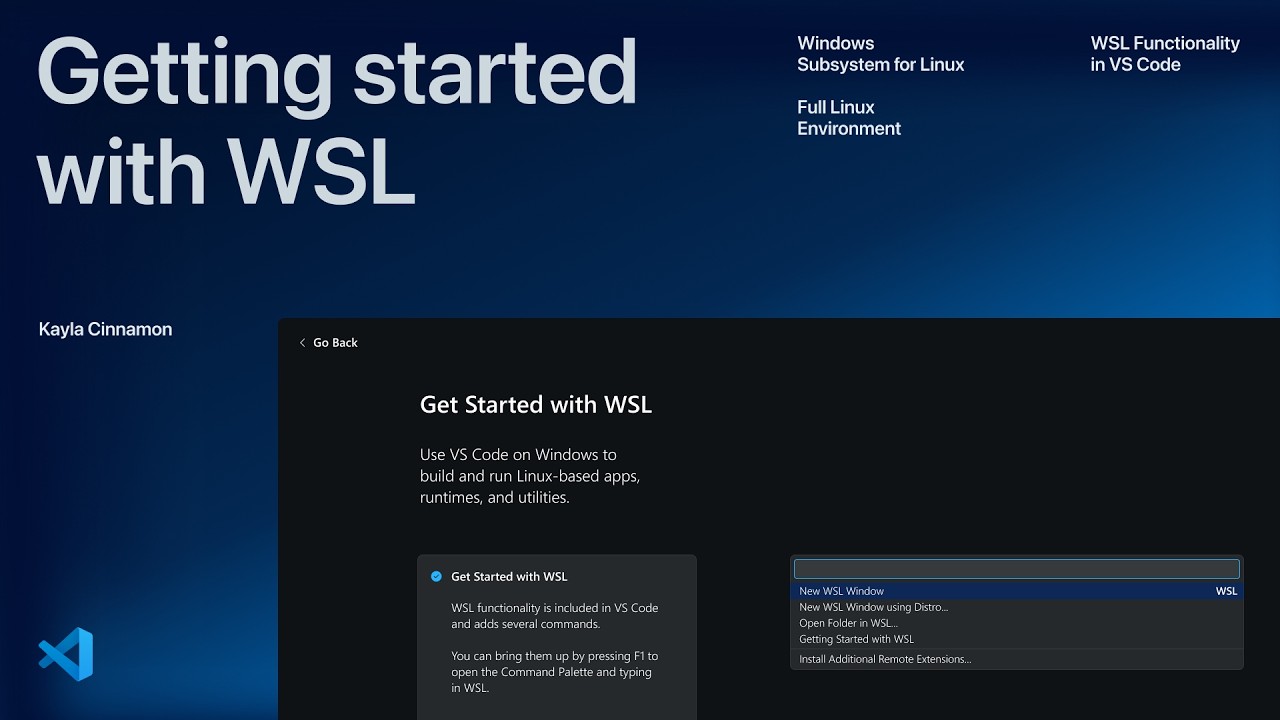
The video demonstrates how to seamlessly integrate Windows Subsystem for Linux (WSL) with Visual Studio Code (VS Code) to develop Linux projects on a Windows machine, highlighting setup steps, environment switching, and extension installation within WSL for optimal performance. It also showcases using GitHub Copilot to automate task configuration and provides tips for efficiently resuming work in the WSL environment, streamlining the Linux development workflow on Windows.
The video introduces Windows Subsystem for Linux (WSL) as a native Linux kernel integrated into Windows, enabling users to run Linux projects or have a bash environment directly on Windows. Visual Studio Code (VS Code) offers seamless integration with WSL, making it feel natural to work with Linux projects on a Windows machine. The presenter demonstrates how to set up a project in VS Code to work within the WSL environment, using a coffee app project called Brewprint as an example.
To begin, the presenter opens the project folder in VS Code but notes it is not initially recognized as a WSL project. They guide viewers through accessing the WSL walkthrough available on the VS Code welcome page or via the command palette. By connecting to the installed WSL distribution (Ubuntu in this case), VS Code switches its environment to WSL, allowing the user to open the project folder directly from the Linux file system. This setup ensures that the project runs within the Linux environment on Windows.
Once the project is opened in WSL, the terminal inside VS Code reflects the Linux environment, confirmed by running Linux commands like uname. The video highlights the importance of installing extensions on the WSL side rather than the Windows side to optimize performance and provide native Linux tooling. The presenter installs the C# Dev Kit extension within the WSL environment to support their .NET API project, enabling features like IntelliSense and improved development workflows.
The presenter also demonstrates how to use GitHub Copilot chat to generate a tasks.json file tailored for the project. This file defines tasks such as launching the API and starting the web server, all configured to run Linux commands within the WSL environment. These tasks integrate smoothly into VS Code’s UI, allowing easy execution without manually entering commands. The video shows how running these tasks launches the project and opens it in the integrated browser, streamlining the development process.
Finally, the video offers a practical tip for resuming work on the project later. By opening the Ubuntu shell in the terminal, navigating to the project directory, and running code ., VS Code reopens the project in the WSL environment with all previous settings intact. This workflow ensures a consistent and efficient development experience when working with Linux projects on Windows through WSL and VS Code. The video concludes by encouraging viewers to set up their projects similarly to enjoy the benefits of this integration.
Useful Links